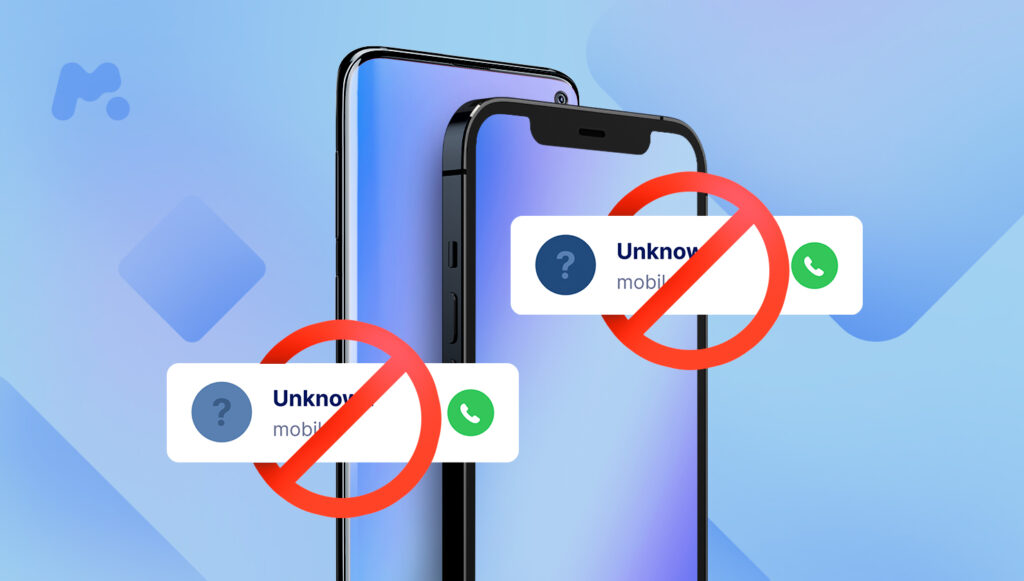
Spam calls have gotten way out of hand. It used to be that you could simply ignore anything with a caller ID of “unknown caller” or a distant or toll-free area code. Today, thanks to automated systems that spoof phone numbers, scammers and spammers can call you from numbers that look like they’re from right in your neighborhood.
So if you are tired of these spam calls, then here’s how you can block the spam calls on your iPhone. Meanwhile, there are few apps available on the AppStore that can be used to block spam calls. Examples of such apps include truecaller, but apple has got you covered as ios have an in-build spam call filtering to block incoming calls from spammers or scammers.
To turn on Silence Unknown Callers, go to Settings > Phone, then scroll down, tap Silence Unknown Callers, and turn on the feature. Calls from unknown numbers are silenced and sent to your voicemail, and appear in your recent calls list.
Incoming calls will come through from people that are saved in your contacts list, recent calls list, and from Siri Suggestions to let you know who’s calling based on phone numbers included in your emails or text messages.
Here’s how to block spam numbers on an iPhone.
- Go to the App Store and download an app that detects and blocks spam phone calls. You can download and install multiple apps with this feature from different app developers.
- Go to Settings > Phone.
- Tap Call Blocking & Identification.
- Under Allow These Apps To Block Calls And Provide Caller ID, turn the app on or off. You can also reorder the apps based on priority. Just tap Edit and then drag the apps in the order you want them.
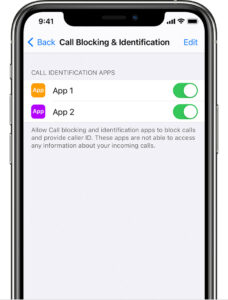

When you receive a call, your device checks the caller’s number and compares it to the list of phone numbers in your third-party spam apps. If there’s a match, iOS displays the identifying label chosen by the app, for example, Spam or Telemarketing. If the app determines that a phone number is a spam, it may choose to block the phone call automatically. Incoming calls are never sent to third-party developers.
If you determine that a number is from a spam caller, you can block the number manually on your device. Phone numbers that you manually block appear under Blocked Contacts.
- You won’t be receiving any notifications for the calls for the number you have blocked. And if you want you can review the blocked numbers and unblock a number to receive calls from it again.